Writing scripts
This page covers the files AoE2RMSIDE works with, how includes are found, and the help the editor gives you. It does not teach the RMS language itself. For that, see Learn more at the end of this page.
File types
| Extension | What it is | Can you Run it? |
|---|---|---|
.rms, .rms2 |
A random map script. This is the map the game lists. | Yes |
.inc, .def |
An include file with shared code, used by a map through #include. |
No, run the map that includes it |
.xs |
An XS script, loaded by a map with #includeXS. |
No, run the map that loads it |
.rmstest |
A map test for AoE2RMSIDE. See Map tests. | Yes |
If you press Run with an .inc, .def or .xs file active and no map
pinned, Output says that these files are include-only and cannot be run.
Running a map while you edit an include
An include file cannot run on its own. To see its effect, pin the map that uses it:
- Open the map (
.rmsor.rms2) so its tab is active. - Open the Run options (the arrow next to the Run button).
- Press Pin executed script. The map's tab now shows a small play icon.
- Switch to your include file and edit it. Run now runs the pinned map.
The Executed script field in the same menu always shows which script Run will use.
XS scripts
A map can load an XS script with #includeXS filename.xs. Keep the .xs file
in your open folder (or use one of the game's own XS files). AoE2RMSIDE finds
it there. When you deploy the map, the XS file goes into the mod; when you
start a live test, it is also copied into your game profile's XS folder (see
Live testing).
To start a new XS file, right-click a folder in the Explorer and choose
XS Script (below Map-Test Script), or use File → New XS Script.
The new file has a short commented main() function, which the game runs
once when the match starts.
What the editor does for .xs files:
- Syntax coloring that matches your RMS theme, folding and an outline.
Ctrl+/ toggles
//comments and Shift+Alt+A toggles/* */comments. - Checks as you type, listed in Problems like RMS problems: syntax errors, undefined or misspelled names, wrong types and argument counts, functions that are not available in the selected game version or cannot be used from a random map, unknown rule names, unreachable code, unused variables, and more.
- Completion, signature help, and hover documentation from a built-in catalog
of XS functions. It offers only what the selected game version has.
Completion opens by itself after a
.and on Ctrl+Space. Choosing a function inserts the call with its parentheses, puts the cursor between them and opens the parameter help. If the parentheses are already there, only the name changes. - Parameter help while you type a call: a small box shows the function's parameters with their names, types and default values, and marks the one you are typing. For some functions, the box and the hover also explain in plain words what each parameter does and what the function returns, with a link to the AoE2DE UGC Guide.
- The name of each parameter before its argument, in calls that pass two or more arguments (see Inlay hints). An argument that is already a variable with the parameter's name gets no hint.
- A hint when two arguments look swapped. Say a function's parameters are
named
columnsandrows, and you call it with your own variablesrowsandcolumnsin that order: each variable sits in the place of the parameter with the other's name. A small dotted mark then appears under the two arguments; point at it to read Check the argument order (XS4027). The order may be what you want, so this is only a hint: it is not listed in Problems and has no quick fix. - Links to related places. When a problem is about another place too, such as the earlier definition a duplicate name repeats, the declaration a name is used before, or the function whose arguments look swapped, the message links to that place in the hover and in the Alt+F8 peek. Click the link to go there.
- Quick fixes (Ctrl+., or the light bulb) where the fix is clear:
- remove an unused variable or a self-assignment;
- insert a missing
;at the end of a line; - replace a function the selected game version knows under another name, for example Use 'xsUnsyncGetLocalPlayerId';
- turn
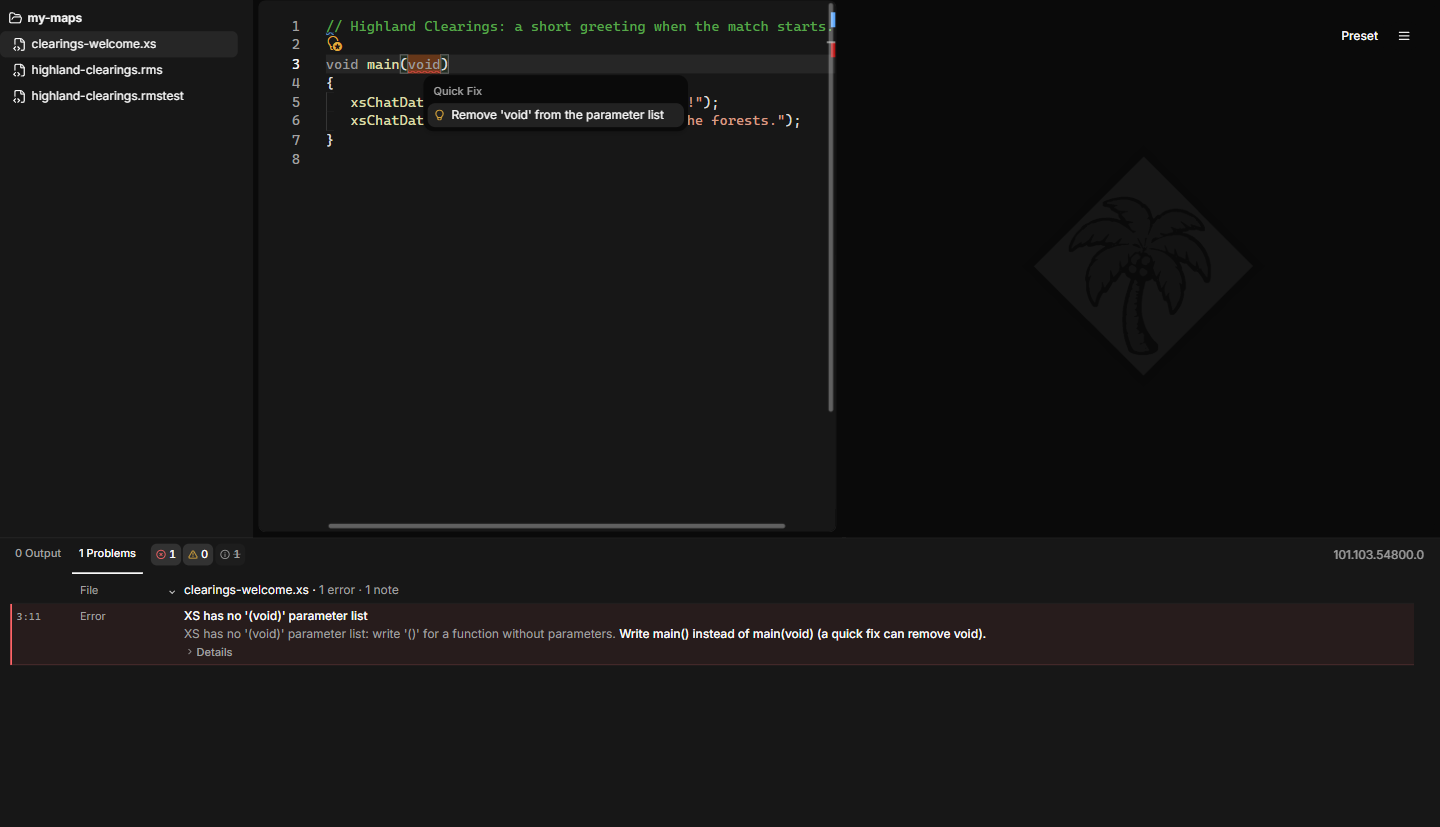
main(void)intomain(). XS has no(void)parameter list, and the game refuses the file as the editor does.
- Rename (F2) of your own functions, rules, and variables across the
XS files of a map. Every file that uses the name must be open in the
editor; otherwise the rename box names the file to open first. Names from
the game's own
Constants.xsand the game's own files are never renamed. - Go to Definition (F12) works from an
#includeXSline into the XS file, from aninclude "file.xs";line, between XS files, to your own XS functions, and to the game's constants. Include lines also open their file from the hover, with Ctrl+click, or with Open Included File in the right-click menu (see Opening included files). Find All References (Shift+F12) lists where a name is used. - Format Document (Shift+Alt+F) changes only the indentation and the spaces at the ends of lines. Format on Save formats XS files too. A file with syntax errors is not formatted.
- Deploying and live testing refuse a map whose XS file has syntax errors, for example start.xs has XS syntax errors, with the file and line. A live test checks this before it changes anything in the game, and nothing is deployed.
Link your game folder so the editor can read the game's XS constants (from
the game's own Constants.xs, which AoE2RMSIDE never copies). Without it,
the editor cannot tell a misspelled constant from a real one. A note in
Problems says so; notes are hidden until you turn them on in the Problems
filter.
The preview does not run XS. The game runs a map's XS code after the map has been generated, so XS never changes the terrain or elevation you see; it can change players, objects, and game data when the match starts. When a map loads XS, the run's line in Output and Problems show the note XS effects are not shown. It is information only and does not stop anything.
Includes and the game's definitions
Your own includes
#include loads another file into your script. AoE2RMSIDE looks for it in the
open folder. If a file cannot be found, it is skipped with a warning, as in
the game. The editor marks the line and Output explains the problem. To open
an included file, point at its name and click
Open, Ctrl+click it, or right-click the line and choose Open Included
File (see Opening included files).
Open the folder that contains your map and its includes with File → Open Folder…. Opening a single file also works: its includes are still found next to it, and you can open the files it includes from their include lines, but the Explorer does not show that file's folder.
Built-in names such as GOLD or GRASS
Names like GOLD, GRASS or TOWN_CENTER come from the game's definitions.
AoE2RMSIDE ships these definitions for every game version it supports, so
they work without the game installed.
The game's standard include files
The game comes with its own include files that official maps use. AoE2RMSIDE does not ship them. A script that includes one of them needs:
- a linked game folder, and
- the local game version selected in the Preview game version menu.
Otherwise the script cannot run, and Output names the include and the one step to take (Link your game folder or Select your local game version). See Getting started.
You cannot give your own files the name of one of the game's standard include files. The IDE refuses such a name so your file cannot be confused with the game's.
Help in the editor
Errors and warnings
The editor checks your script while you type. Problems are underlined in the text and listed in the Problems tab. Point at an underlined word to read the message. Alt+F8 shows the message of the next problem right under its line. When a problem is about another place too, for example the line that sets an attribute again or the first definition of a name, the message links to it in both views; click the link to go there.
Some problems only appear when you run the map. They are reported in Output under the run's line, with the script and line when there is one. Output shows a plain headline, one sentence of cause and at most one step to take; the code and the full technical message are under Details for bug reports. Problems you can see in the editor stay in Problems and are not repeated in Output.
Lint warnings
Besides errors, the editor warns about code that is valid but probably not what you meant. Each of these lint rules has a code:
| Code | Rule | What it finds |
|---|---|---|
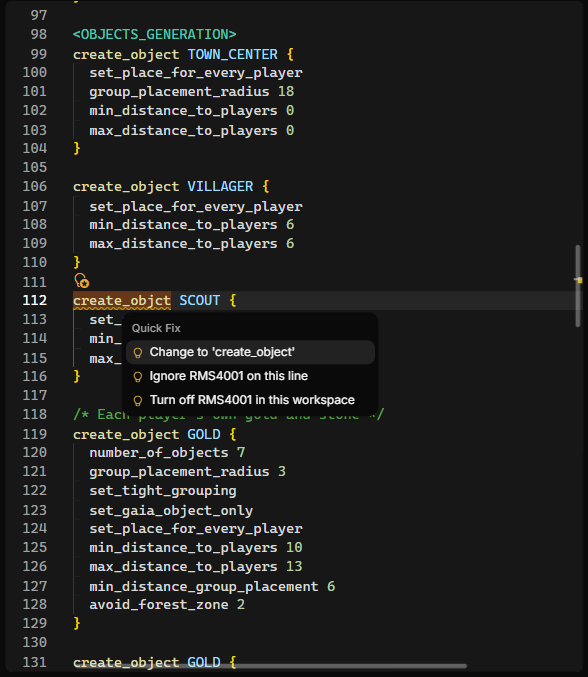
| RMS4001 | Unknown command | A word at the start of a line that is not an RMS command. The game looks commands up by their exact spelling and skips words it does not know. |
| RMS4002 | Unused definition | A #define or #const that nothing in the script or its includes reads. |
| RMS4003 | Command has no effect here | A command the game ignores where it stands, and #undefine, which does nothing. |
| RMS4004 | Attribute set again | An attribute that a later line in the same block replaces. |
| RMS4005 | Random branch never chosen | A percent_chance branch that no roll can select. |
| RMS4006 | Zero-chance first branch | A first branch with chance 0, which is still chosen 1 time in 100. |
| RMS4007 | Value is clamped | A cliff_type outside 0 to 5, or a cliff_curliness above 100. The game uses the nearest value it allows. |
| RMS4008 | Constant already defined | A #const that gives an existing name another value. The first value wins. |
| RMS4009 | Not a comment in the game | // or ; written as a comment, or /* and */ glued to other text. The game only skips text between /* and */ written apart, so it reads the words after // or ; as code. |
| RMS4010 | Number where a name is needed | A plain number where a command reads an object, terrain, effect, resource or attribute, for example create_object 66. The game only finds defined names there, so it ignores the whole command. Write the name instead, such as GOLD. Amounts and other values still take numbers. |
| RMS4011 | Name may be undefined | A name your script defines with #define or #const that some random or conditional path to the line leaves undefined, for example when one percent_chance branch misspells it. On such a path the game ignores a command that needs the name, and counts a value written with the name as 0. |
An unused definition (RMS4002) is not underlined: its name is shown faded,
and Problems does not list it. After // or ;, RMS4009 is a warning only
when the game runs something after it on that line, such as a command or a
defined name, and the warning says what runs. When the game skips every word
there, a small dotted mark under // or ; is all you see, Problems does not
list it, and the same quick fix is offered. RMS4011 is a hint as well: a
small dotted mark under the name, which Problems does not list. It looks at
every path at once, whatever seed and settings the preview uses, and names
that the lobby or an include can define never count. Point at the mark to
read the message, which links to the lines that define the name. RMS4006 is a
note, which Problems hides until you turn notes on in its filter. The others
are warnings.
Lint warnings never stop you from running, deploying or live testing a map. The rules stay quiet wherever the game could read the code differently from the editor.
Turning a rule off
If a rule does not fit your map, you have three ways to silence it:
- For the whole folder: open View → Lint Rules and uncheck the rule. The choice is kept for the open folder (files opened without a folder share one setting). The quick fix Turn off RMS4002 in this workspace does the same.
- For one line: add the comment
/* rmside-ignore RMS4002 */at the end of the line, or alone on the line above it. The quick fix Ignore RMS4002 on this line inserts it above the line for you. Without a code,/* rmside-ignore */silences every lint rule on that line. - For one file: add
/* rmside-ignore-file RMS4002 */anywhere in the file. Without a code, it silences every lint rule in the file.
One comment can name several rules, for example
/* rmside-ignore RMS4002 RMS4004 */. These are ordinary RMS comments, so
the game ignores them. Keep a space after /* and before */, as the game
requires for comments.
Quick fixes
When the fix for a problem is clear, a light bulb appears next to the line. Click it (or press Ctrl+.) to apply the fix:
- change a misspelled command to the command it most likely means, when only the letter case differs or one letter is wrong, missing or extra (RMS4001);
- change an undefined name to the one defined name that differs from it by one letter;
- remove the line of an unused definition, an ignored command, an
#undefineor an attribute that is set again, when that line holds nothing else; - turn the rest of a line after
//or;into a/* */comment the game skips (RMS4009); - add a missing
endifor}at the end of the file, when it is the only thing left open; - ignore a lint rule on this line, or turn it off in this workspace (see above).
A fix changes only that spot and can be undone in one step. Nothing is changed automatically when you save.
Quick fixes also work when the editor cannot check the whole script the way the game reads it, for example when the open folder is too large for that check or the script has an error that stops it. Only the fix for an undefined name needs that check; when a fix cannot be offered, no light bulb appears.
Completion, snippets and hover documentation
- The editor suggests what fits where the cursor is: commands at the start of
a section, only the attributes valid for the current block inside
{ }, and matching values after an attribute. Terrain and object names come from the selected game version, also without a linked game folder. - Suggestions open by themselves after a space wherever a name is expected,
for example after
create_object, after<for a section header and after#for a directive. Ctrl+Space opens them anywhere. - After
ifandelseifyou get the labels a lobby can define. After#includeyou get the files of your open folder, one folder level at a time. - Snippets insert whole constructs, such as a
create_objectblock, with placeholders. Press Tab to move from one placeholder to the next. - Press Enter at the end of a block command such as
create_object GOLD, or after a{that is not closed yet, and the editor adds the braces with the cursor on an indented line between them.if...endifandstart_random...end_randomwork the same way. One Undo removes it. - While you type arguments, a small box shows what the command expects.
- Point at a command, attribute or built-in name to read its documentation: what it does, where it is allowed, its values and defaults, and sometimes a short example. Editor help follows the selected game version, so it does not list version differences.
Editor help is built into AoE2RMSIDE and works offline.
Inlay hints
Inlay hints show extra information inside the text without changing it:
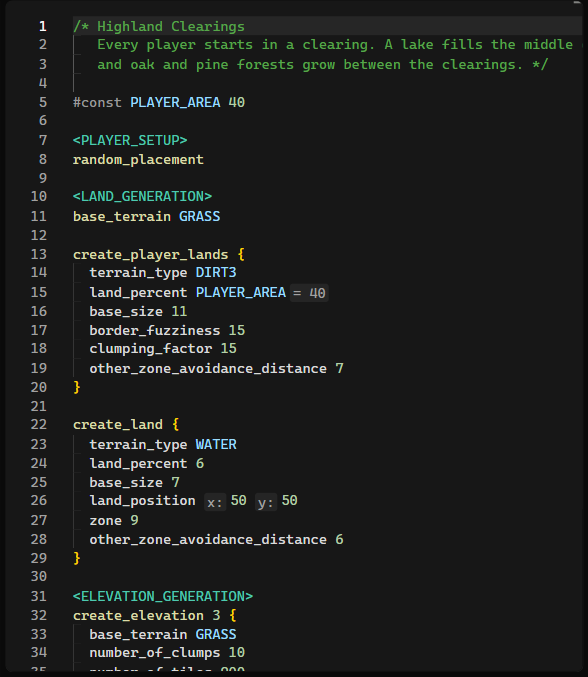
- the name of each value in commands that take several numbers, for example
x:andy:inland_position; - the value a
#conststands for, for example= 40; - in XS files, the name of the parameter each argument fills, in calls that pass two or more arguments.
Inlay hints are on by default. Turn them off with View → Show Inlay Hints if they crowd long lines; while they are off, hold Ctrl+Alt to show them for a moment.
Navigating
- Go to Definition (F12) jumps to where a name is defined, including in include files. On an include line it opens the included file.
- Find All References (Shift+F12) lists where a name is used.
- Rename (F2) renames one of your own
#constor#definenames (also a label you define forif) everywhere it is used: in the script, in the files it includes, and in the other open maps that include the same files. Every file that uses the name must be open in the editor; otherwise the rename box names the file to open first. Names the game or the lobby defines, and the game's own files, are never renamed, and a rename only goes ahead when every affected map still generates the same way. - The editor can fold sections and blocks.
- Braces are colored by nesting level, and the matching brace is highlighted. Braces inside comments and quoted text are not counted.
Opening included files
Every include line can open the file it names: #include, #include_drs
and #includeXS in an RMS script, and include "file.xs"; in an XS script.
There are three ways besides F12:
- Point at the file name. The hover shows an Open link with the file's name, for example Open F_seasons.inc. Click it.
- Ctrl+click the file name. It is a link while you hold Ctrl.
- Right-click the include line and choose Open Included File. The item only appears when the cursor is on an include.
If the file already has a tab, AoE2RMSIDE switches to that tab instead of opening it again. The game's own standard include files and XS files open read-only.
When the file cannot be opened, the hover says why instead of showing a link, in the same words as the problem it causes: for example, no file with that name is next to the script or in the game, or a standard game include needs a linked game folder with its local version selected.
Right after you type a new include line, the right-click item and the Ctrl+click link can take a moment to appear.
Formatting
Edit → Format Document (Shift+Alt+F) tidies the indentation of the current script:
- four spaces per level inside sections, blocks and conditionals;
- no tabs at the start of lines;
- no spaces at the end of lines.
If you line up values in columns across neighboring lines, the formatter keeps that alignment. A wide gap that lines up with nothing on the lines around it becomes a single space:
create_object GOLD
{
    number_of_objects        7
    min_distance_to_players  20
    max_distance_to_players     40
}
Here the first two values share a column and stay aligned. The last line's wide gap lines up with nothing and becomes one space. A blank line ends a group of aligned lines; a comment line does not. Blank lines, brace placement, comments and line breaks stay as you wrote them. The formatter does not change a script that has errors.
Edit → Format on Save formats RMS and XS files each time you save them. It is on by default. Map tests are not formatted.
Edit → Indent if/else Blocks (on by default). When on, Format Document,
Format on Save, Enter and typing elseif, else or endif indent the lines
inside an if/elseif/else block one level. When off, those lines keep the
indentation of the code around them and only lines inside braces are indented.
Random blocks (start_random … end_random) are never indented. The choice is
yours alone and is not stored in your scripts or workspace; run Format
Document to apply it to an open script.
The editor reads a line the way the game does: a whole conditional on one line
(if TINY_MAP base_size 8 endif) opens and closes there, so it is highlighted,
checked and indented like a multi-line one, and Enter after it adds no second
endif.
Other conveniences
- Ctrl+mouse wheel changes the editor font size.
- Ctrl+click opens a web link in a comment.
- If AoE2RMSIDE closes while you have unsaved changes, it recovers them the next time it starts.
- Maps you open from the game's installation are read-only. Use File → Save As… or Clone for Editing to make an editable copy.
Definition Files
A Definition File is an .inc include file that gives readable names to
object and terrain IDs, so your scripts can write create_object
BAMBOO_STUMP_1358 instead of a bare number. Choose File → Generate
Definition File…, or right-click a folder in the Explorer and choose
Definition File….
The dialog shows the game version the names come from and, when you open it from the File menu, the folder the file goes into. Pick Terrains, Objects, or both; each shows how many names it writes. Names the game already defines are left out by default, because every script can use them anyway. Turn on Include built-in names to write them too.
When your game folder is linked and has the same game version, objects and
terrains the game leaves unnamed get names from the game's own display text,
such as VILLAGER_MALE. If two of them would get the same name, each gets its
ID added (FLAG_1300). Names already defined by the game, by a game lobby
setting, or by a script in your folder are never reused. A built-in name your
scripts already define is left out, and the dialog tells you how many.
Notes like these appear on one line next to Generate. When there is more than one, the most important shows with a count such as +1; point at the note, or move to it with Tab, to read them all.
The file name is suggested for you (terrains.inc, objects.inc, or
definitions.inc) until you type your own. It must end in .inc and cannot
be the name of one of the game's own include files. If a file with that name
exists, you're asked before it's replaced. Without an open folder, you choose
where to save after Generate.
The file opens in a preview tab. Add it to a map with
#include "definitions.inc". It is a snapshot of one game version and does
not change when the game updates; generate a new one after an update if you
want new names.
Learn more
These are community guides written by other people. They are external references, not part of AoE2RMSIDE, and they are not evidence of how AoE2RMSIDE behaves or how compatible it is with the game.
Random map scripting
- Definitive Random Map Scripting Guide by Zetnus (open the guide directly). The most complete RMS guide: every section and command, a constant reference with the IDs of terrains and objects, advice on testing and publishing, and a changelog of RMS changes in each game update. It is kept up to date with new game updates. Much of what AoE2RMSIDE knows about random map scripts was learned from this guide; thank you, Zetnus.
- aoe2map.net, run by the Siege Engineers community. A large collection of published map scripts with previews. Reading real maps is one of the best ways to learn.
XS scripting
The XS documentation in the AoE2DE UGC Guide is written mainly by Alian713, together with Kramb and KSneijders. It was the starting point for AoE2RMSIDE's XS support, and the editor's XS help links to it. Thank you, Alian713, Kramb and KSneijders.
- XS Scripting: A Beginner's Guide
by Alian713. Starts from zero and shows how to attach an XS file to a
random map with
#includeXS. - XS function reference by Alian713, Kramb and KSneijders. Look up what each XS function does and which arguments it takes.