Deploying and live testing
When your map is ready to play, AoE2RMSIDE can copy it into a local mod that the game lists under custom maps. If you have AoE2Control, it can also start the map in the running game for you.
Both are optional. The preview and map tests work without the game, and you can always copy your files by hand.
| Feature | Needs a linked game folder | Needs AoE2Control | Needs the game running |
|---|---|---|---|
| Preview and map tests | No | No | No |
| Deploy a mod | Yes | No | No |
| Live test | Yes | Yes | Yes |
Deploy your map as a mod
- Choose File → Deploy as Mod… (Ctrl+Shift+B), or right-click the map's editor tab and choose Deploy as Mod….
- Check the settings in the dialog:
- RMS source: the map to deploy. The list shows your open
.rmsand.rms2files. - Mod name: the name of the mod folder. The IDE suggests the map's file name without its extension, or the name you last deployed that map under for the profile. Use the arrow next to it to reuse the name of an earlier export. A name you type or pick stays until you close the dialog, even when you change the map or the profile.
- User profile: the game profile to install the mod for. The IDE suggests one.
- Target directory: the folder the mod folder goes into. The folder button next to it opens it in Windows Explorer.
- Map icon (to the right of the fields): see Map icons below.
- Enable mod (next to Deploy mod): leave it on to have the IDE turn the mod on in the game's mod list for that profile. It changes only this mod's entry, and the IDE remembers the choice.
- RMS source: the map to deploy. The list shows your open
- Look through the file tree. It shows which files the mod will contain.
- Press Deploy mod.
After deploying, the confirmation shows the mod's folder. Open mods folder shows it in Windows Explorer; Finish (or Enter) closes the confirmation.
The game shows a new map and its icon only after it restarts. Restart the game after deploying. With Enable mod off, enable the mod yourself in the game under Mods → My Mods, then restart the game. If the game was running while you deployed, it may undo the change when it closes. If the mod is off after the restart, close the game and deploy again. If the IDE cannot read the game's mod list, it leaves the list unchanged, tells you why, and the mod is still deployed.
The mod is written to the game's local mods folder:
%USERPROFILE%\Games\Age of Empires 2 DE\<profile>\mods\local\<Mod name>\
The dialog's Target directory shows the mods\local folder the mod goes
into and lets you copy it. The folder button to its right opens that folder in
Windows Explorer, so you can quickly reach your local mods. Before your first
deployment for a profile the folder may not exist yet; the button then opens
the closest folder above it in that profile. After deploying, the confirmation shows the mod's
own folder, which you can copy too.
What goes into the mod
- your map (
.rmsor.rms2); - the include files your map uses from your own folder;
- the XS files your map loads with
#includeXS, in the mod'sresources\_common\xsfolder under the name your#includeXSline uses, which is where the game looks for them; - the
info.jsonfile the game needs for a local mod; - the map icon, if you choose one.
Nothing else is copied. Map tests, reports, settings and other files in your folder stay out of the mod. The game's own include files and XS files are not copied either, because every player already has them.
If one of your XS files has syntax errors, the IDE does not deploy. The dialog names the file and line, for example start.xs has XS syntax errors. Fix the errors listed in Problems, then deploy again. Live tests check the same before they change anything in the game.
If the preview does not already show the selected map, opening the dialog generates it. That way the IDE deploys the files the map used.
If a mod with the same name already exists, the IDE asks before replacing it.
Play it in the game
In the game's lobby, set the map style to Custom and pick your map. If it does not show up, see the FAQ.
Map icons
The game shows a PNG with the same file name as your map as its icon in the map list. AoE2RMSIDE can make that icon for you.
Turn on Generate map icon in the deploy dialog. The button and the icon below it form one box: while generation is on, the button shows a check mark and the whole box has a stronger fill. Clicking the icon itself also turns generation on (see below). The IDE draws a 512×512 image from the generated map: the terrain, cliffs, trees, gold and stone, and a marker for each player's start. Other objects are left out, like in the game's own map icons. The icon you see is the icon that is saved and deployed.
Point at the icon to show Save image… in its top-right corner.
Click the icon to enlarge it. If Generate map icon is off, clicking the icon turns it on. The buttons in the bottom-left corner of the enlarged icon change how it is drawn:
- Top-down view / Diamond view draws the icon like the preview's perspective: the square-tiled diamond or the flatter 2:1 diamond.
- The look button switches between Minimap colors and Texture colors (the default), like the preview's Look.
- Terrain relief shades the terrain by its height.
Below the enlarged icon you can also:
- choose the seed the icon is drawn from, roll a Random seed (the dice), or go back with Use editor seed;
- switch Smooth terrain transitions on or off;
- choose the spawn markers: each click on the marker button moves on from Player squares (the default) to Nomad feet to No spawn markers. The size next to it sets how large the markers are, as a share of the map width;
- choose how trees, and gold and stone, are drawn (below).
All choices are remembered for the next icon.
If your folder already has a PNG with the same name as your map, the IDE uses yours by default. Turning on Generate map icon replaces it in the mod only; your own file is not changed.
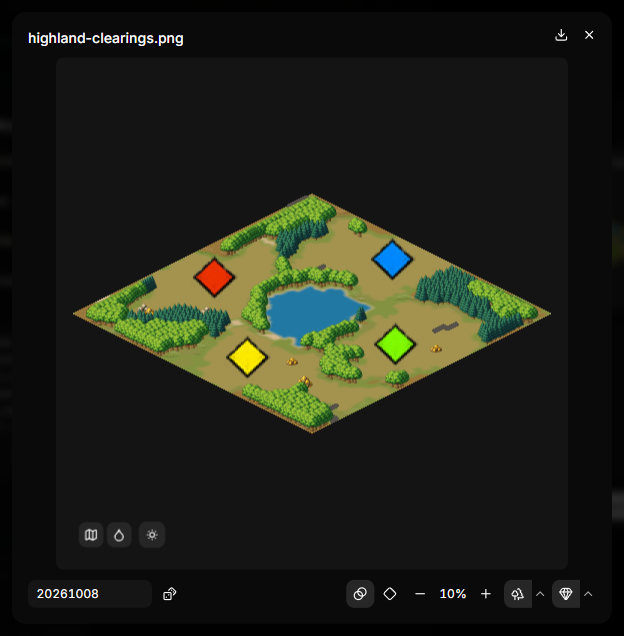
Trees, gold and stone
The last two buttons below the enlarged icon are Show trees and Show gold and stone. Click one to show or hide that kind of graphic. The graphics are drawn for AoE2RMSIDE in the style of the game's map icons; they are not taken from the game.
- Trees are drawn in groups. Each group shows the tree kind that grows there most, for example pine, palm or snow pine, or a plain tree when there is no better match.
- Gold and stone: each pile of mines is drawn as one graphic at its middle, a larger one for piles of five tiles or more.
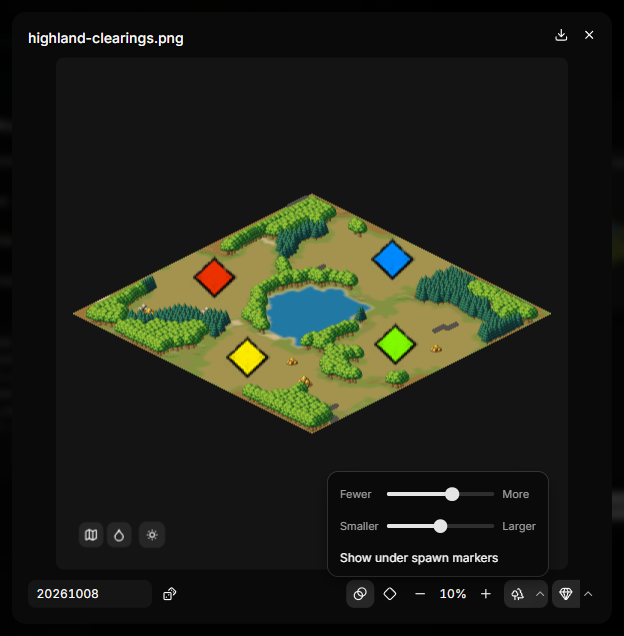
The narrow arrow next to each button opens a small menu with the same three controls for that kind:
- an amount slider from Fewer to More. At More, nearly every object gets its own graphic. Toward Fewer, nearby groups merge, and at the end there is a single graphic for each kind (one tree, one gold, one stone) at the average position of all of them;
- a size slider from Smaller to Larger. It changes how large the graphics are, not where they stand;
- Show under spawn markers. Graphics are always drawn behind the spawn markers. By default, graphics that a spawn marker would cover are left out; turn this on to keep them.
The icon is drawn again when you let go of a slider.
Nothing in the icon crosses the edge of the map. A graphic that would stick out is moved inward, or left out if it would have to move further than its own size. Spawn markers are moved inward too, but never left out.
Give your map a unique file name
If your map has the same file name as one of the game's own maps, the game may show the built-in map's icon instead of yours.
Live testing with AoE2Control
Live testing starts your map in the running game with the seed and settings from the preview. It saves you from setting up the lobby by hand each time.
What you need
- A linked game folder.
- AoE2Control 1.1.0 or newer, installed separately. AoE2RMSIDE does not include it. Saxons, Varangians and Danes need AoE2Control 1.1.1 or newer and a game version that has them. The lobby options (game mode modifiers, Turbo, Full tech tree, Antiquity and Solid farms) need AoE2Control 1.1.1 or newer too; with an older AoE2Control a live test with any of them on stops before it changes anything in the game, and Output says "This AoE2Control version can't set lobby options".
- Age of Empires II: DE running, in single player. AoE2RMSIDE never starts the game for you and refuses to act in multiplayer.
- One of the verified game versions (see Which game versions are supported?). Other versions are refused with "This game version is not supported for live testing."
Set it up
- Open the Run options (the arrow next to the Run button).
- Choose Select AoE2Control and select the AoE2Control executable (installing it: Installation). (Without a linked game folder, this row offers Select game folder first.) The download button next to it opens the AoE2Control releases page.
- Turn on Live test on run.
A check mark on the button shows that live testing is on for your next runs. Turning it on or off does not start a run, and leaves the current preview and any run in progress untouched.
While AoE2Control is connected, the button beside it is Detach AoE2Control. It disconnects from the game and keeps your selected executable and Live test on run choice; the next live test connects again. Once it is disconnected, the button becomes Remove AoE2Control, which clears the selected executable.
Run a live test
Start the game and press Run in AoE2RMSIDE. The IDE then:
- generates the map in the preview first;
- connects to AoE2Control, and checks AoE2Control and the game;
- if a match is running, asks before ending it (End and Replace Match);
- copies your map into its own live-test mod, AoE2RMSIDE Managed Maps, and the map's XS files into your profile's XS folder (see below);
- selects the map in the game;
- starts a Random Map game with your map, seed and settings;
- checks that the match started with those settings.
While this runs, a progress bar on the right side of the bottom panel bar, before the Preview game version menu, shows one word for the current step, such as Connecting, Copying or Starting. Point at the word or the bar to see the step in full, for example "Starting the match (step 8 of 9)". When the match is verified the bar fills and fades out. If the live test stops, the bar disappears and Output says why.

The match starts with the whole map revealed, so you can compare it with the preview. AoE2RMSIDE sets the lobby options from the preview (off when they are off) and checks them after the start like every other setting.
A live test is a single-player game: you play the player in P1, and every
other player is a computer. While Live test on run is on, the players
menu shows this, and the next requested preview uses the same computer
players. A live test needs a player in P1. The live test's steps and its
result appear under the run's line in Output, for example
Match verified with seed 1234.
The live-test mod is separate from the mods you deploy yourself. The IDE updates it for every live test. Do not edit its files; they are overwritten. It never gets a map icon.
XS files in live tests
The game looks for a map's XS files in its XS folders. Your profile has one:
%USERPROFILE%\Games\Age of Empires 2 DE\<profile>\resources\_common\xs\
Before each live test, AoE2RMSIDE copies the XS files your map loads with
#includeXS into that folder, under the name your #includeXS line uses.
That way the game finds them even if the live-test mod is turned off in the
game's mod list. The Output line of the copy step names the files, for
example "The map's XS file start.xs is in your profile's XS folder too."
The folder is yours, so AoE2RMSIDE is careful with it:
- It only replaces or removes files it copied there itself, and only while they are unchanged. It keeps a small record of them for this.
- If the folder already has a file with the same name that AoE2RMSIDE did not put there, the live test stops before it changes anything in the game, and Output names the file, for example start.xs already exists in your profile's XS folder. Rename your XS file or remove the existing one. A file with exactly the same content is used as it is.
- If you edit one of its copies there, AoE2RMSIDE does not overwrite your edits: the live test stops and Output says so. Move your edits elsewhere or remove the file, then run the live test again.
- When your map no longer loads an XS file, AoE2RMSIDE removes its copy. A copy you changed is left where it is.
- Write
#includeXSlines with the file name only, without a folder. Two different XS files that would get the same name are refused.
If the copy fails halfway, AoE2RMSIDE puts back every file it changed in that live test.
When something goes wrong
If anything goes wrong, the preview stays as it is and Output says what happened and what to do, for example AoE2DE is not running with Start AoE2DE, then press Run again. The technical message stays under Details for bug reports. Common messages:
| Output says | What to do |
|---|---|
| AoE2DE is not running | Start AoE2DE, then press Run again. |
| The AoE2DE window is not ready | Open the game window (not minimized), then press Run again. |
| The game stopped answering while the match started | The game may be showing a message, such as a script error. Close it in the game, then press Run again. |
| AoE2Control closed the connection without an answer | The game may be busy or showing a message. Check the game window, then press Run again. |
| AoE2Control is busy | Wait a moment, then try again. |
| This AoE2Control release is not compatible | Select a compatible AoE2Control release. |
| This AoE2Control version can't set lobby options | Select AoE2Control 1.1.1 or newer, or turn the lobby options off. |
| A live test needs a player in P1 | Open the players menu and put a player in P1. |
| Some lobby settings were not restored | Check the named settings in the game's lobby before your next game. |
See also the live test questions in the FAQ.
AoE2RMSIDE talks to AoE2Control through a local connection that any program running under your Windows user can use, including requests that start or end a match. See RMS IDE Endpoint.
Use the seed of the current match
With a linked game and AoE2Control selected, the Run options offer Use current match seed. It copies the seed of the single-player match that is running into the Seed field and locks it, so the preview shows the same map.