Interface Options
Press Shift to open or close the CONTROL menu. The menu has the submenus MODULES, MISC, UI, KEYBINDS and DEBUG, followed by one submenu for each running module's settings. CONTROL saves every change to settings.ini in the config folder.
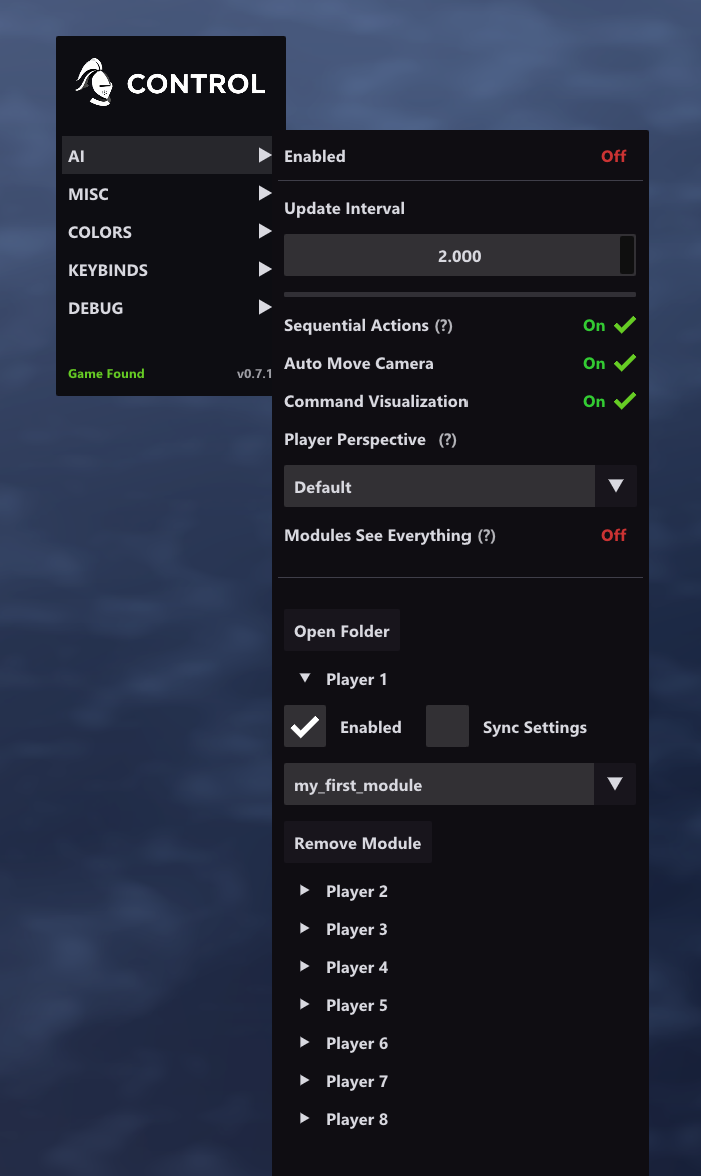
Module Discovery
The Module list shows every {moduleName}.main.lua and {moduleName}.main.module file in the modules\ folder and up to three folders below it. Module System has the full rules, including what happens when two files have the same name.
MODULES Submenu
| Setting | Default | Description |
|---|---|---|
| Enabled | On | Turns all module slots on or off. |
| Update Interval | 1.0 |
Seconds of game time between Update() calls. The slider goes from 0.1 to 2.0; a value set in settings.ini can be as low as 0.01. |
| Sequential Actions | On | Allows one game command per Update() call. Further commands in the same call are refused. |
| Auto Move Camera | On | Moves the camera to the target of each executed command. Only one module moves the camera: the one on the local player's slot, or else the one with the lowest player number. |
| Command Visualization | On | Draws an overlay for each executed command. |
| Suppress Native AI | On | Turns off the built-in AI of a computer player while a module is assigned to its slot. |
| Tournament Mode | Off | Refuses game commands outside Update(), adds Update() time above 20 ms to the next interval, and blocks a list of functions. See Limits. |
| Multithreading | Off | Runs each module on its own thread, which reduces the frame-rate cost. Render() is not called, and some functions are blocked or return nil. See Limits. May cause sync issues. |
| Modules See Everything | Off | Modules ignore fog of war when they read map tiles, objects and players. See Perspective And Visibility. |
| Agent Bridge | Off | Turns on the Agent Bridge. While it is on, a checkbox per player appears below it; each opens a pipe through which any program running under your Windows user can read that player's view and send its commands. Not available in multiplayer. |
Changing Multithreading reloads every assigned module.
Below the settings, Open Folder opens the modules\ folder, followed by the player sections.
Player Module Slots
The MODULES submenu has one section for each player, Player 1 to Player 8. Each section is one module slot.
| Control | Description |
|---|---|
| Enabled | Turns the slot on or off without clearing the selected module. |
| Sync | Stores the module's settings in a shared profile instead of per player, so several slots can use the same values. |
| Module | Selects the module for the slot. Selecting the same module again reloads it from its files. |
| Sync Profile | Shown when Sync is on. Selects the shared profile (S1, S2, ...). |
| Create Profile / Remove Profile | Adds a profile for the selected module, or removes the selected one. The last profile cannot be removed. |
| Remove Module | Clears the slot. |
A section also shows:
- warnings, such as
Player is not available.when the assigned player is not in the current match, - Lua errors from the module,
- in Tournament Mode, the slot's current update interval, its added delay and a progress bar.
Each running module gets its own settings submenu, named after the module and its settings group, for example MY_MODULE [P2] per player or MY_MODULE [S1] for a shared profile. The Settings API adds the controls in it.
MISC Submenu
| Setting | Default | Description |
|---|---|---|
| Player Perspective | Default |
Shows the game from another player's view: Default (the local player), Player 1 to Player 8, or Gaia. May cause crashes. Resets to Default when CONTROL starts. |
| Game Speed Multiplier | Default |
Overrides the game speed: Default, 1, 1.5, 2, 5, 10, 20 or 30. Default keeps the game's own speed; switching back to Default during a match restores that speed. Resets to Default when CONTROL starts. SetGameSpeedMultiplier() changes this setting. |
| Spectator Mode | Off | Shows the whole map, as a spectator sees it. |
| Unlock Zoom | Off | Lets you zoom out further than the game allows. May cause rendering issues. |
| Chat Welcome Message | On | Sends [CONTROL] Have fun! to the chat at the start of each match. |
UI Submenu
| Setting | Default | Description |
|---|---|---|
| Menu Scale | 1.0 |
Menu size: 0.5, 0.75, 1.0 or 1.5, multiplied by the Windows display scale. |
| Menu Transparency | 0.05 |
Background transparency of CONTROL's windows, from 0 to 0.7. |
KEYBINDS Submenu
| Setting | Default | Description |
|---|---|---|
| Menu Toggle Key | Shift |
Opens or closes the CONTROL menu. Works only while the game window is focused. |
| Unload Key | Delete |
Unloads CONTROL from the game. Works only while the game window is focused. |
DEBUG Submenu
The DEBUG submenu has a Show Log / Hide Log button, the two settings below, and a line with CONTROL's diagnostics status.
| Setting | Default | Description |
|---|---|---|
| Module Telemetry | Off | Shows how long each running module's Update() and Render() take, and CONTROL's share of each frame. |
| API Profiling | Off | Counts each module's calls into CONTROL and Lua library functions and the time they take. Applies to modules loaded or reloaded after it is turned on, and slows them down. |
With Module Telemetry on, the submenu shows:
- CONTROL's time per frame, the time between game frames, and CONTROL's share of it,
- Baseline Frame: CONTROL's time per frame without module callbacks (hidden with Multithreading on),
- one row per running module: the mean, 95th percentile and maximum of
Update()andRender()over the last 256 calls, the mean relative to the baseline, and the update delays that Tournament Mode added.
A module can read its own numbers with GetModuleTelemetry() whether or not the setting is on. diagnostics\latest.json in the config folder has the same report under moduleTelemetry.
With API Profiling on, GetModuleTelemetry().api and each module's api list in diagnostics\latest.json show how often each native function was called and its total time, by the name used at the call site (GetPosition, format). A function called from native code, such as one passed directly to pcall, appears as (unnamed). Time spent in Lua code is not counted.
Perspective And Visibility
Player Perspective changes what the game draws. Modules See Everything changes what modules can read.
With Modules See Everything off, a module reads map tiles, objects and players as its assigned player sees them: no objects under fog of war and no hidden data of other players. Animals, trees, forage, gold and stone that the player has explored stay readable when they are out of sight.
Log Window
Show Log in the DEBUG submenu opens the log window. Log("message") writes a line to it, prefixed with [MODULE]. Lua errors, warnings and CONTROL's own messages appear there too. In Tournament Mode, Log() does nothing.